
How to debug a Firefox add-on (extension)
Before we get started#
Firefox supports browser extensions like Chromium-based browsers (Chrome, Arc, Brave, Edge etc.). Sometimes they’re referred to as add-ons in Firefox land.
This post assumes that you are debugging a browser extension you are building, i.e. have the source code for and can build it locally.
It’s also assumed that the Firefox add-on has been built, i.e. generated the files, including a manifest for the add-on to work.
The following instructions work for Firefox and Firefox Deveoper Edition.
Setup Firefox for debugging an add-on#
-
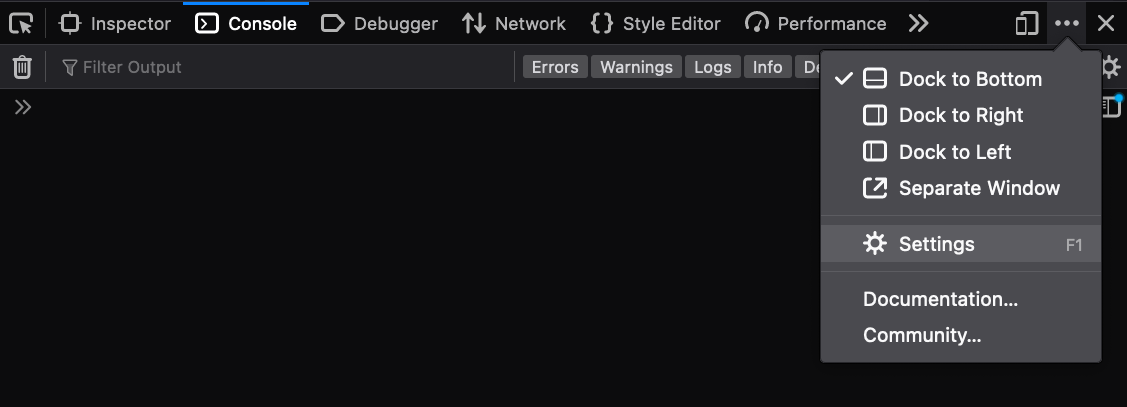
Open the browser DevTools and click on the three dots button, then select settings.
-
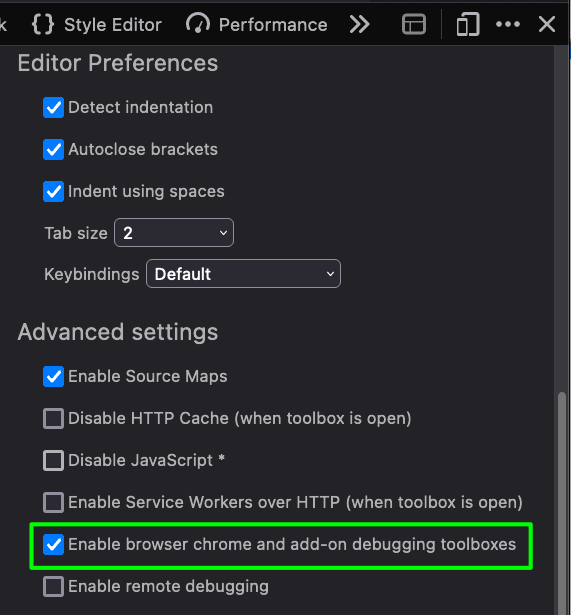
Scroll down to the Advanced Settings section and ensure Enable browser chrome and add-on debugging toolboxes is checked.
-
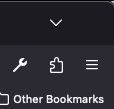
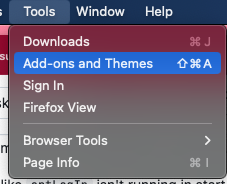
Load the add-on by clicking on the puzzle icon in the top right of Firefox or via the application menu, Tools -> Add-ons and Themes
-
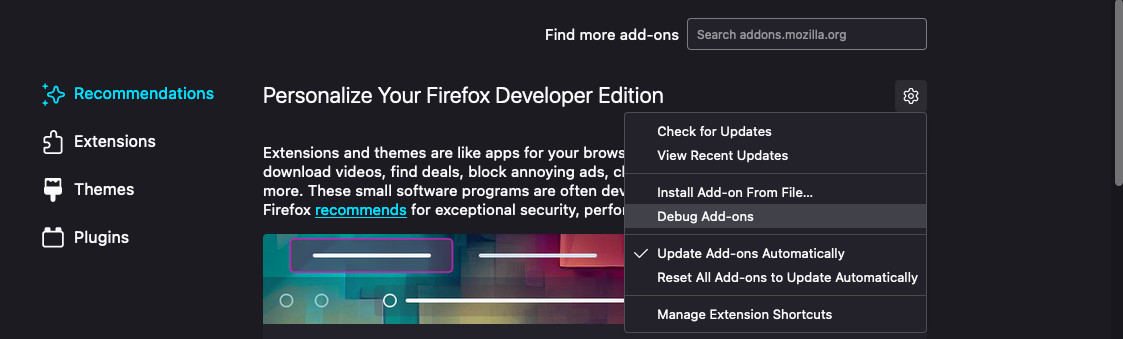
Click on the cog icon to open the menu and select Debug Add-ons
-
Ensure you built the extension with the changes in my branch by running
npm run build -
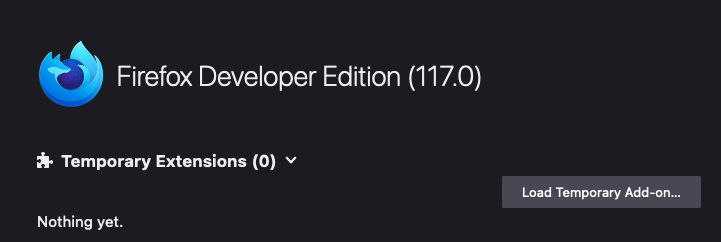
Click on the Load Temporary Add-on... button
-
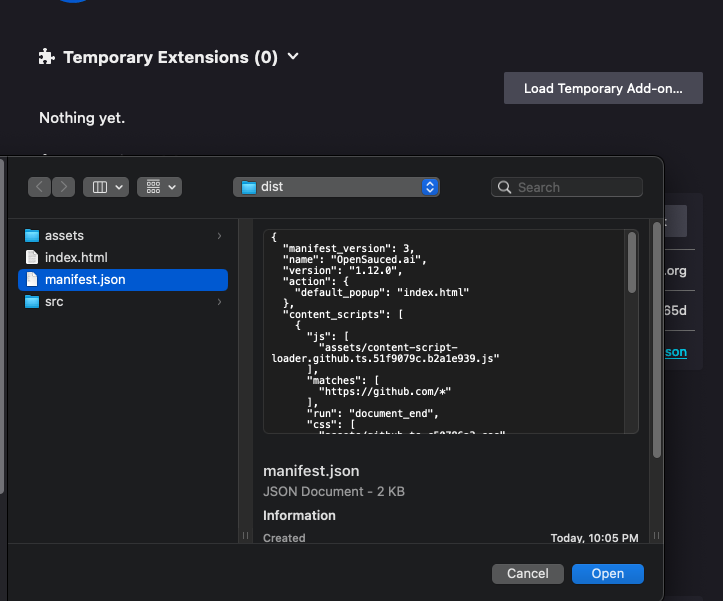
Select the manifest file of the add-on from the OS file menu and click the Open button.
-
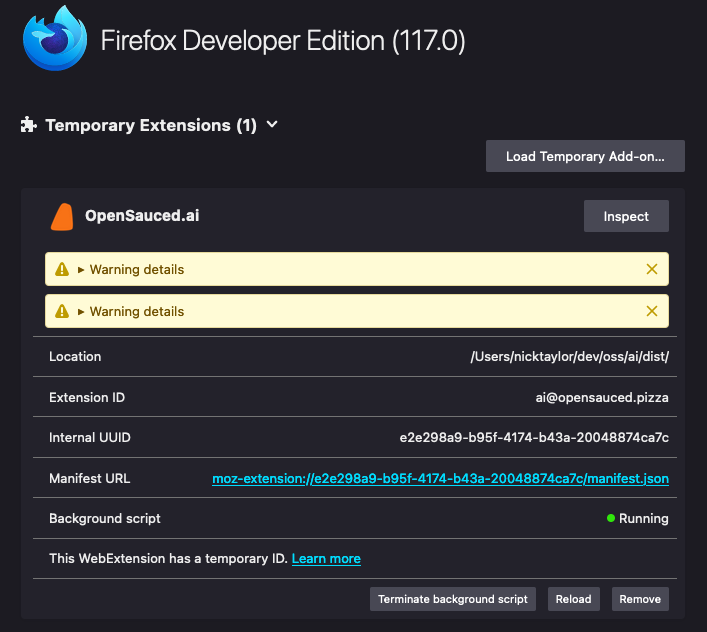
The extension is now ready for use.
-
Navigate to a page where you’re using your extension.
-
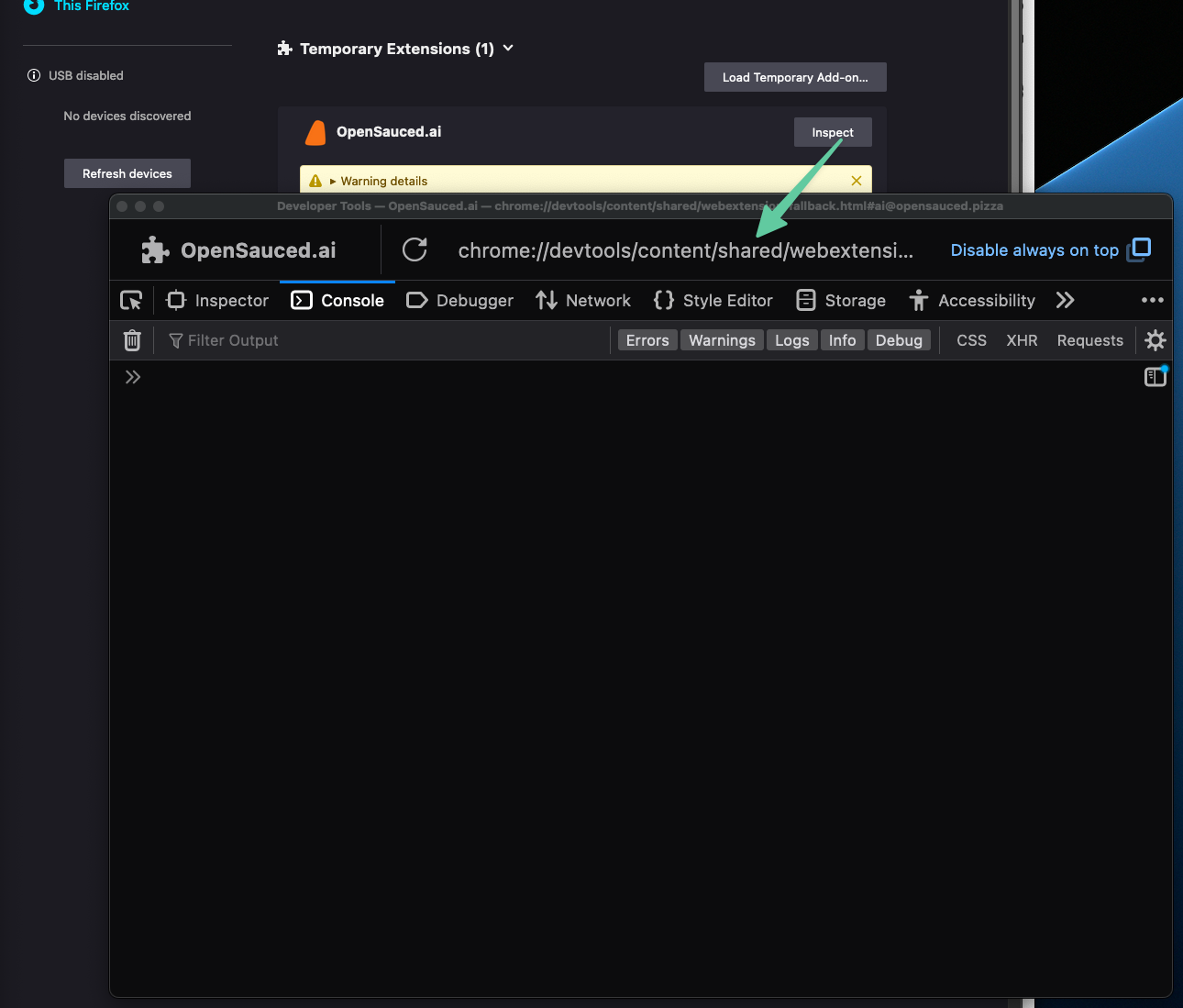
If you want to debug or inspect the extension, click the Inspect button from the Temporary Extensions section where the extension was just loaded.
-
You now have access to all the same browser dev tools you’re used to for debugging a web site, i.e. Inspect Element, CSS styles inspector, JavaScript debugger, etc.
And that’s it!
Photo by Birger Strahl on Unsplash